
Before you start
- You need Admin access to your venue's gift card settings.
- Have your Tag Manager container ID ready. It looks like
GTM-XXXXXXX.
Add your container to the gift card widget
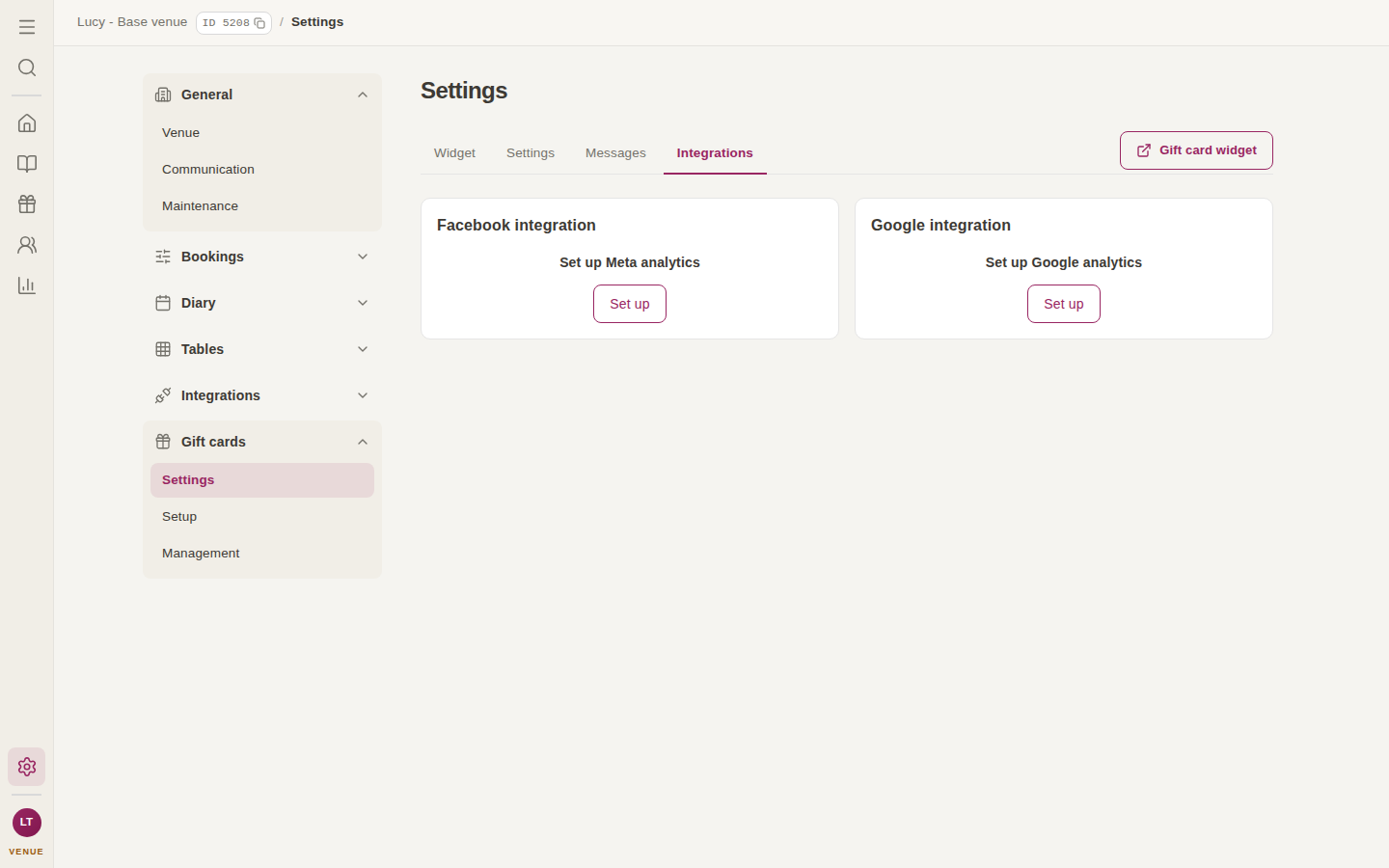
- Go to Settings → Gift cards → Settings and open the Integrations tab.
- Under Google integration, click Set up.
- In Google Tracking Id, enter your container ID and click Set up.
 Count completed orders in Tag Manager
- In Tag Manager, create a trigger with the type Custom Event and the event name Order Complete.
- Add the trigger to your conversion tag (for example, a GA4 event tag) and publish the container.
To check it works, open your gift card widget link in Tag Manager's Preview mode and buy a card. You'll see Order Complete when the order goes through.
Note: Your container runs inside the gift card widget, not on your website. If the widget is embedded on your site, the container on your own pages doesn't receive gift card events, so preview the widget link itself, not your website.
What the widget sends
| Event | Category | When it fires |
|---|---|---|
| Venue Selection | Page View | The guest is choosing a venue, on group widgets only. |
| Card Selection | Page View | The guest opens the card selection page. |
| eGiftCard or physicalCard | User Input | The guest switches between an eGift card and a physical card. |
| Recipient Details | Page View | The guest opens the recipient details page. |
| Customer Details and Payment Details | Page View | The guest opens the payment page. Both events are sent together. |
| Order Complete | Page View | The order is paid and the confirmation page shows. Use this one for conversions. |
| Error | Page View | Something went wrong and the guest sees an error. |
| Payment Timeout | Timeout | The order timed out before payment. eWay venues only. |
Each event includes event_category and event_label, which is your venue name. In Tag Manager you'll find them in the dataLayer's eventModel. [CHECK: confirm in Tag Assistant that the values show under eventModel]
- The widget doesn't send the order amount, the cards bought, or the guest's details.
- A Google Analytics 4 ID (
G-) works here too. The widget then sends the same events straight to GA4, withvenue_nameadded. - A Meta Pixel ID under Facebook integration on the same tab gets the same event names.
- These IDs are separate from the ones in Settings → Integrations, which are for the booking widget.