
Before you start
- You need Venue Manager access or Admin to create or change auto-tags. Venue Users can view them but can't change them.
- The tag you want to add must already exist as a permanent tag. System tags like Previous No Show can't be auto-applied.
- To use Total spend, your POS must send sales to Now Book It.
Create an auto-tag
- Go to Settings → Bookings → Tags and open the Auto-tags tab.
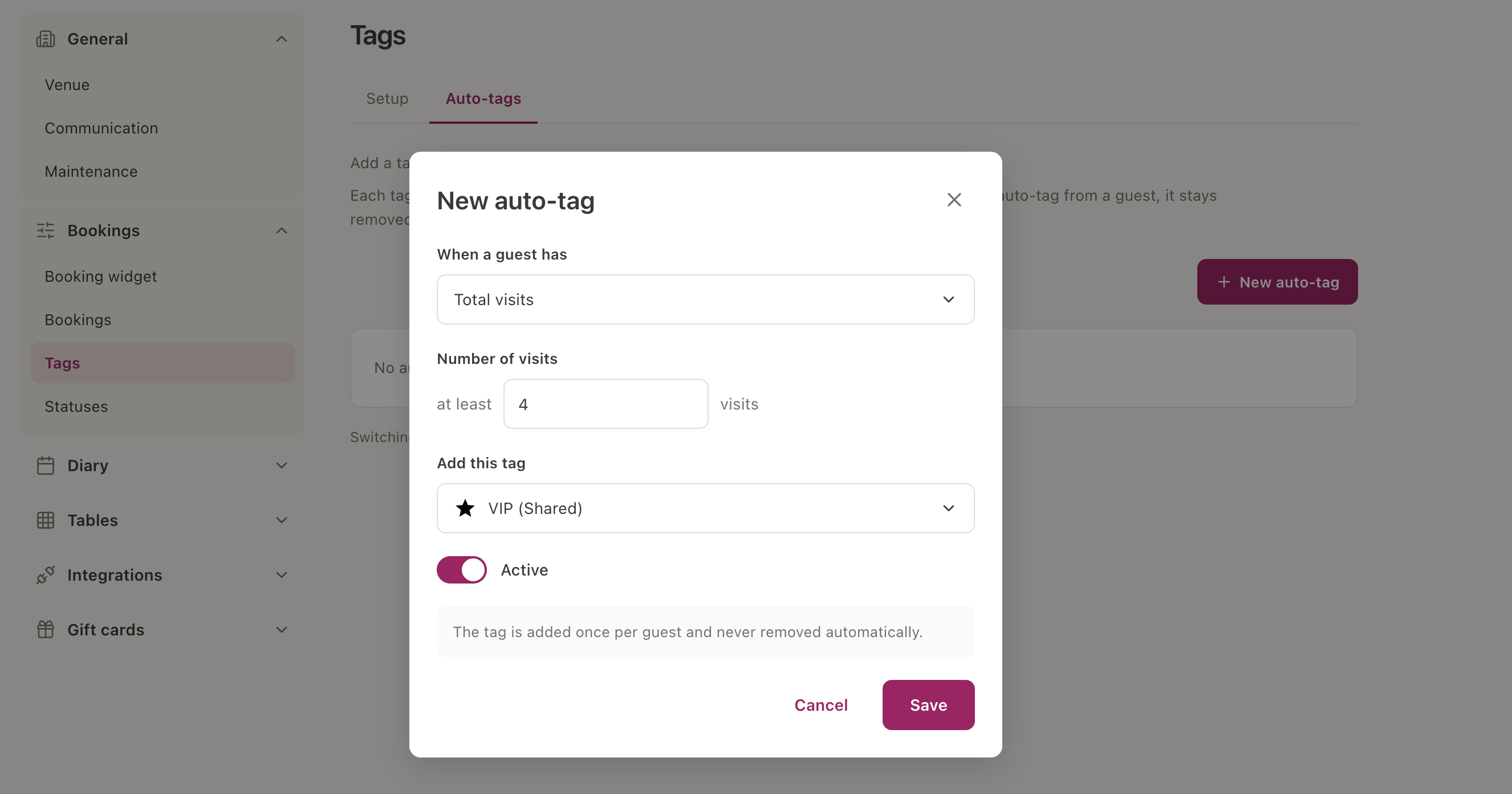
- Click New auto-tag.
- Under When a guest has, choose a condition: Total visits, Total spend, or Has a company name.
- For visits or spend, enter the amount next to at least - for example, 5 visits.
- Under Add this tag, choose the tag. Use Search tags to find it quickly.
- Leave Active turned on and click Save.
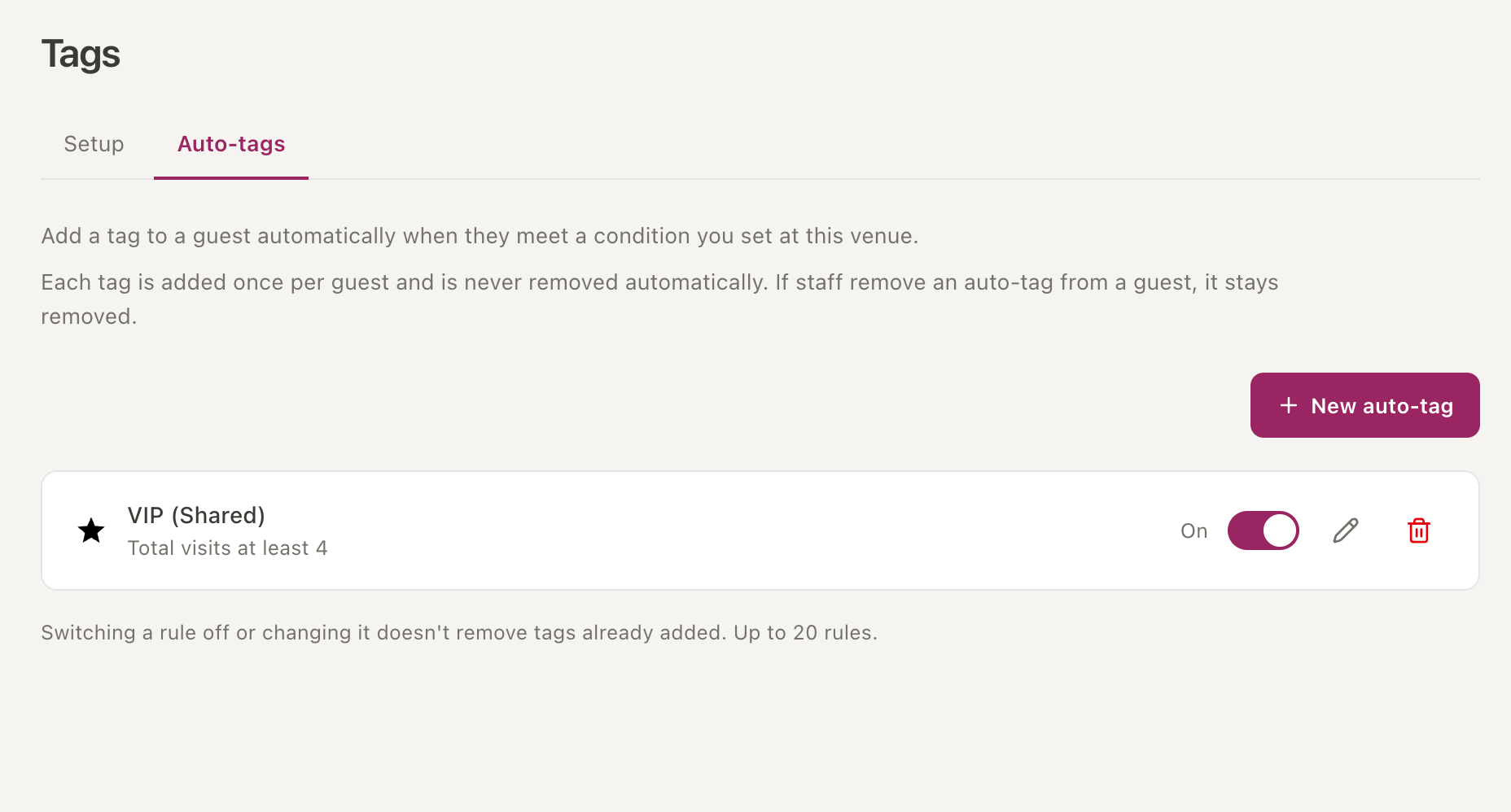
The rule appears on the Auto-tags tab, and the tag shows an Auto label on the Tags tab, such as Auto · 5+ visits.
What counts
| Condition | What counts |
|---|---|
| Total visits | Seated or finished bookings at this venue. Cancelled, no-show, wait list, standby, and partially seated bookings don't count. |
| Total spend | POS sales at this venue, from the day auto-tags are turned on. Refunds lower the total. |
| Has a company name | The guest's customer record has a company filled in. The tag is added the next time one of their bookings is created or updated. |
Good to know
- When you turn on auto-tags and save your first rule, Now Book It counts guests' past visits at your venue, so existing regulars are tagged too. Rules you add later are applied when a guest's booking next changes.
- The tag is added to the guest, not one booking, so it shows on all their bookings at your venue.
- Each tag is added once per guest and is never removed automatically. If staff remove an auto-tag from a guest, it stays removed.
- Switching a rule off, editing it, or deleting it doesn't remove tags already added. Remove them from the guest if you need to.
- Visits and spend are counted per venue. Visits at another venue in your group don't add up.
- Auto-tags only work for guests with a customer record. A walk-in with no details can't be tagged.
- Tags can take a short while to appear while Now Book It updates the counts.
- You can have up to 20 auto-tags. Delete one to add another.