
Before you start
- Connect Stripe to your venue. See Connect Stripe to Now Book It.
- The service needs a payment type of Deposit, Full Payment, or Pre-Authorisation, or a booking option with a payment. Set this in Venue Settings → Diary → Schedule, on the service's Payments & Booking Options tab. See Pre-authorisations for the setup steps.
Send the link with a new booking
- In the diary, click + Booking.
- On the Booking step, choose the date, number of guests, service, and time, then click Next.
- On the Customer step, enter the guest's details, then click Next.
- On the Payment step, check the payment type and price, then [CHECK: exact label of the save button on the Payment step].
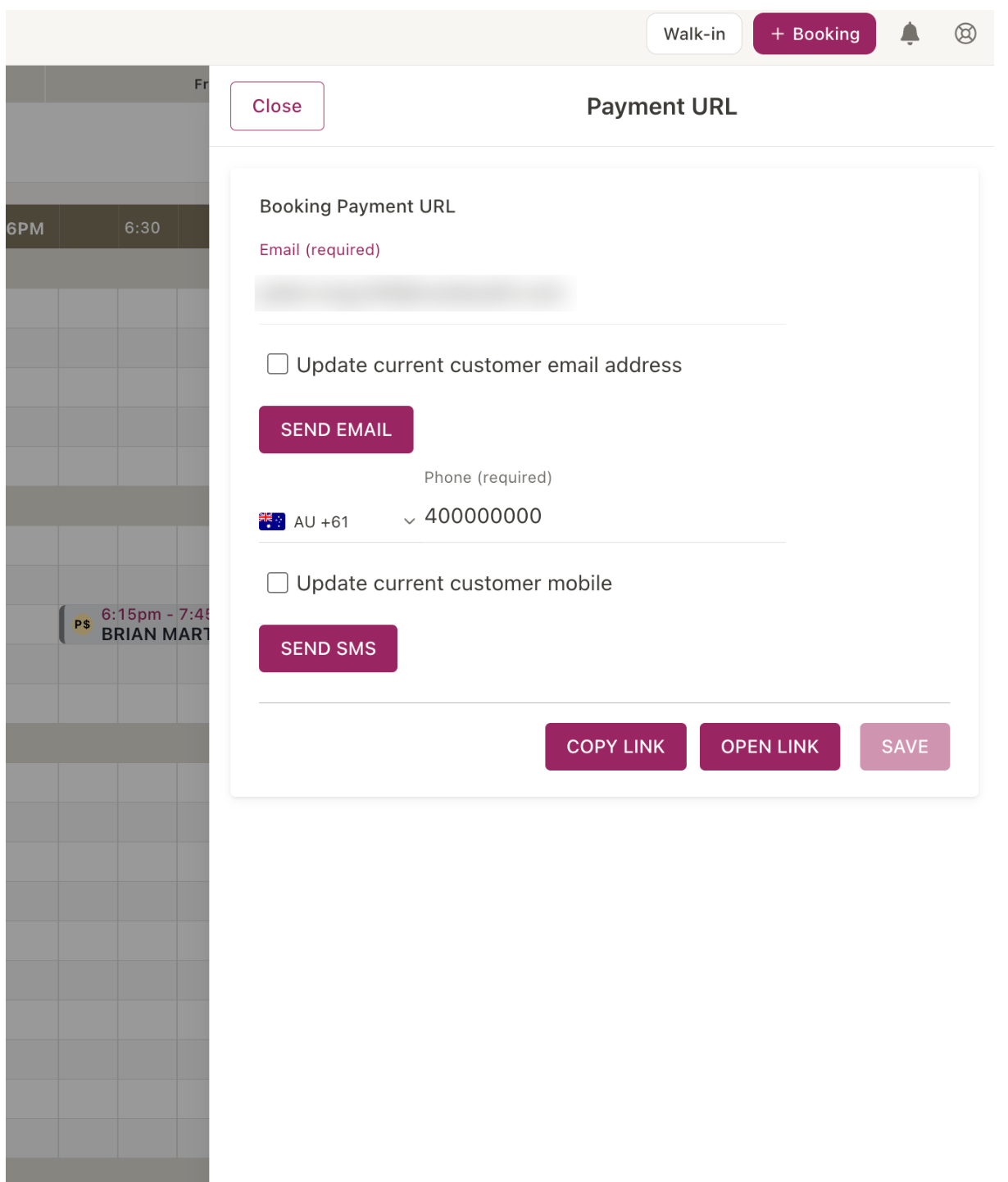
- In the Payment URL panel, click Send email or Send SMS. To send it another way, click Copy link.
The booking shows P$ in the diary until the guest pays or adds their card. Then it shows a card symbol.
Take card details over the phone
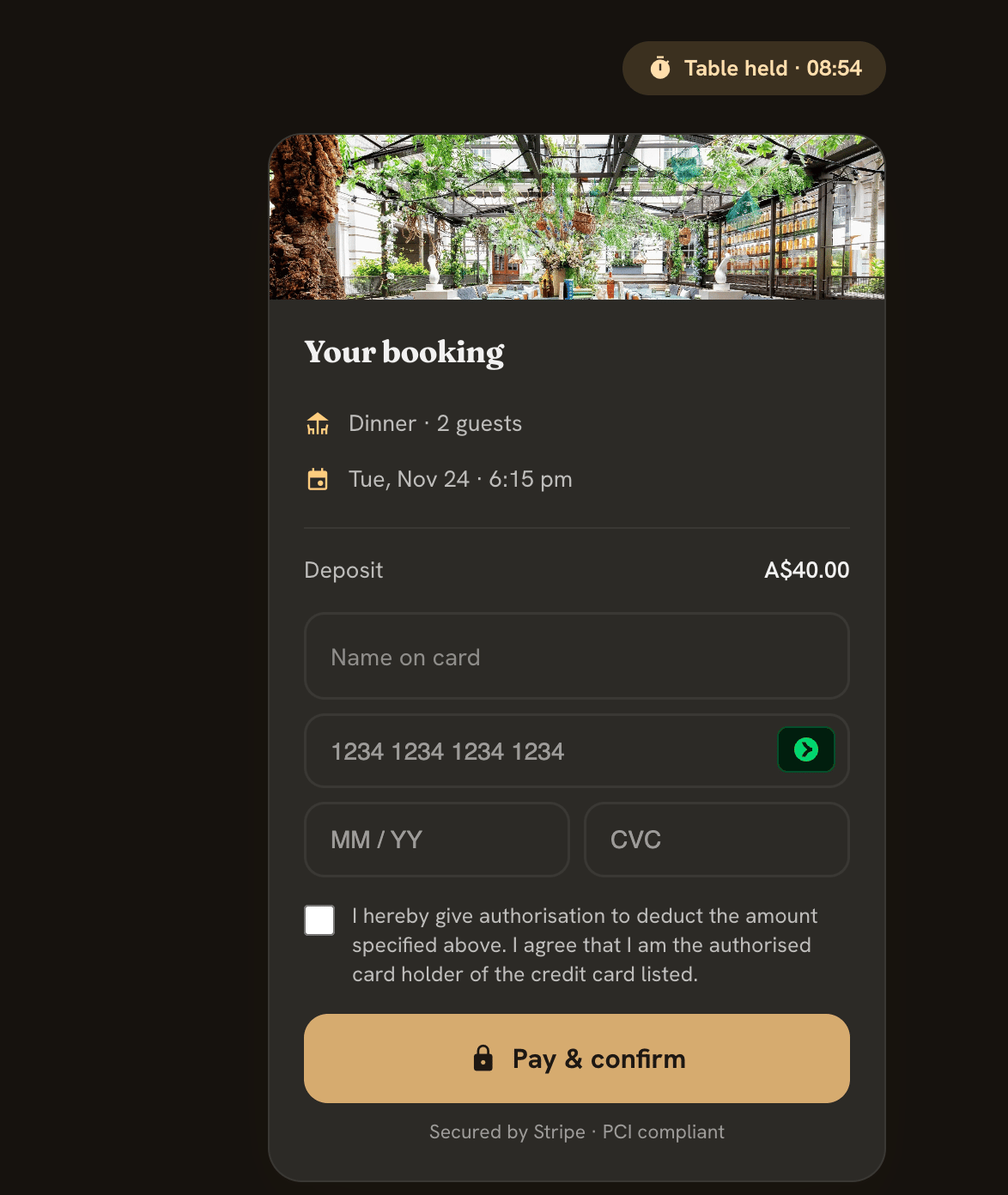
- In the Payment URL panel, click Open link. The payment page opens in a new tab.
- Enter the card details as the guest reads them out, then select Pay & confrim.
Send the link for an existing booking
- Open the booking in the diary and select edit under the payment details.
- In the Payment section 3, click Send email, Send SMS, Copy link, or Open link.
Good to know
- To send the link to a different email or mobile, change it in the panel. Tick Update current customer email address or Update current customer mobile to save it to the guest's profile too.
- Send SMS only shows if your venue has SMS turned on.
- Walk-in bookings don't have a payment link.
- Standby list bookings don't show Send email or Send SMS. Add a table to the booking first. Completing the link sends the guest a booking confirmation email.
- If you use a custom HTML payment link email and pass card fees to guests, open that email template and click Save as a new version.