---
title: Policy Agreement
description: policy, terns and conditions
---
[Skip to content](https://help.nowbookit.com/knowledge-base/policy-agreement#main-content)
English
Show submenu for translations

Open main navigation
Close main navigation
- English
Show submenu for translations
How can we help you?
- There are no suggestions because the search field is empty.
1. [Knowledge Base](https://help.nowbookit.com/knowledge-base?hsLang=en)
2. [Venue](https://help.nowbookit.com/knowledge-base/venue?hsLang=en)
3. [Bookings](https://help.nowbookit.com/knowledge-base/venue?hsLang=en#bookings)
# Policy Agreement
## The Policy Agreement adds a pop-up box to your booking widget, showing customers your terms and conditions and asking them to agree before they can complete their booking.
#### To add a policy agreement to a service
1. Go to **Venue Settings \> Diary \> Schedules**
2. Choose the **day**, then select the **service** you want to add the policy agreement to.
3. Once the service is open, click on the **Settings** tab
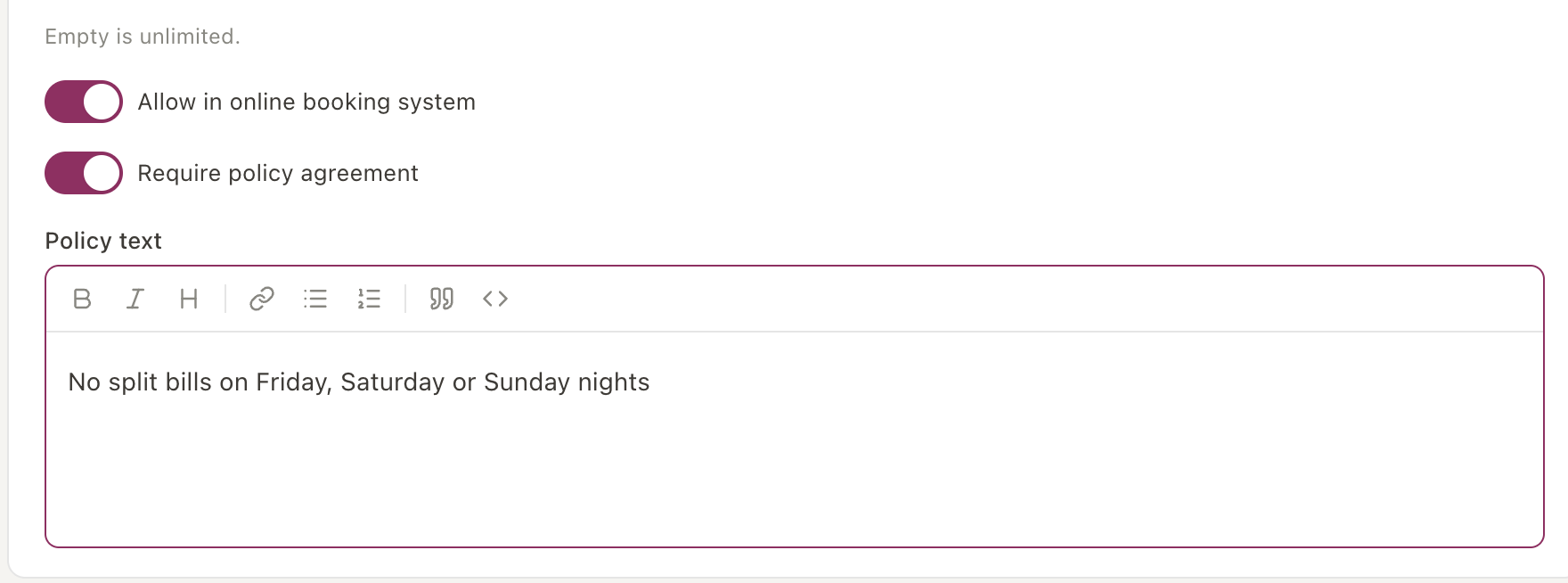
4. Scroll down and toggle the require **policy agreement** box
5. Enter the terms and conditions, cancellation policy, or any other information you'd like customers to see. You can include plain text or links.
6. Select **Save**. Add to all services the pop up is to be displayed.
### What customers see
Once saved, customers booking online for that day and service will see a pop-up asking them to agree to your terms and conditions. They won't be able to continue with their booking until they select continue to agree.
- [Getting Started](https://help.nowbookit.com/knowledge-base/getting-started?hsLang=en#main-content)
- [Organisation Settings](https://help.nowbookit.com/knowledge-base/getting-started?hsLang=en#organisation-settings)
- [Venue Settings](https://help.nowbookit.com/knowledge-base/getting-started?hsLang=en#venue-settings)
- [Customisation](https://help.nowbookit.com/knowledge-base/getting-started?hsLang=en#customisation)
- [Today](https://help.nowbookit.com/knowledge-base/getting-started?hsLang=en#today)
- [Venue](https://help.nowbookit.com/knowledge-base/venue?hsLang=en#main-content)
- [Bookings](https://help.nowbookit.com/knowledge-base/venue?hsLang=en#bookings)
- [Diary](https://help.nowbookit.com/knowledge-base/venue?hsLang=en#diary)
- [Tables](https://help.nowbookit.com/knowledge-base/venue?hsLang=en#tables)
- [Take Away](https://help.nowbookit.com/knowledge-base/venue?hsLang=en#take-away)
- [Events & Functions](https://help.nowbookit.com/knowledge-base/events-functions?hsLang=en#main-content)
- [Events](https://help.nowbookit.com/knowledge-base/events-functions?hsLang=en#events)
- [Payments and Gift Cards](https://help.nowbookit.com/knowledge-base/payments-and-gift-cards?hsLang=en#main-content)
- [Gift Cards](https://help.nowbookit.com/knowledge-base/payments-and-gift-cards?hsLang=en#gift-cards)
- [Payments](https://help.nowbookit.com/knowledge-base/payments-and-gift-cards?hsLang=en#payments)
- [Integrations](https://help.nowbookit.com/knowledge-base/integrations?hsLang=en#main-content)
- [POS Integrations](https://help.nowbookit.com/knowledge-base/integrations?hsLang=en#pos-integrations)
- [Other Integrations](https://help.nowbookit.com/knowledge-base/integrations?hsLang=en#other-integrations)
- [Reporting](https://help.nowbookit.com/knowledge-base/reporting?hsLang=en#main-content)
- [NBInsights](https://help.nowbookit.com/knowledge-base/reporting?hsLang=en#nbinsights)
- [CRM](https://help.nowbookit.com/knowledge-base/crm?hsLang=en)
[](http://nowbookit.com)
Need more assistance?
email: [help@nowbookit.com](mailto:help@nowbookit.com)
Call us:
- Australia: [1800 265 726](tel:1800265726)
- New Zealand: [0800 453 933](tel:0800453933)
- United States: [1 469 458 6874](tel:14694586874)
- Canada: [1 438 794 9945](tel:14387949945)
- International: [+61 2 7912 1576](tel:61279121576)
[mailto:help@nowbookit.com](mailto:help@nowbookit.com)
Copyright © 2026, Now Book It