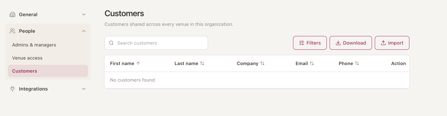
To get there:
- Select your name at the bottom of the screen.
- Go to Organisation > Settings > People.

Users
The Users tab lists everyone who can access your organisation, along with their access level.
Inviting a new user
- Select Invite user.
- In the pop-up, enter the email address of the person you want to invite.
- Choose their access level:
a. Admin
b. Member
c. Organisation Booking Centre User - For non Admin users, please also select the Venue Level access.
- Send the invitation.

The new user will get an email invitation to join your organisation and venue. For non admin users, they must accept this invitation before you can add them to a venue.
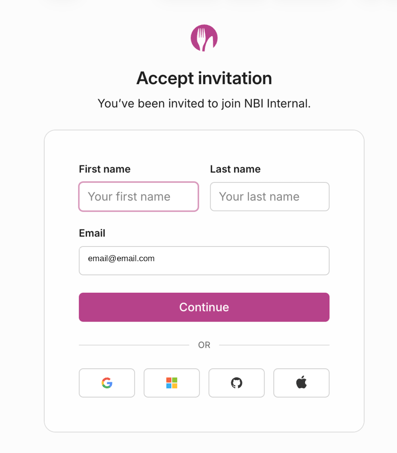
To accept it, they need to:
- Open the email and select the link to accept the invitation.
- Enter their first name and last name, then select Continue.
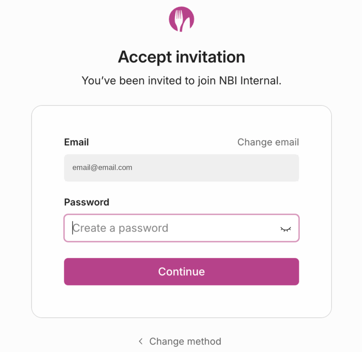
- Create a password.
Venue access
Venue access controls which venues each user who isn't an Admin can see, and their access level at each one.
Admins can see every venue automatically. Members can't see any venues until you give them access. Make sure each Member is given the right venues and the right access level, such as Venue Manager or Venue User.
Access levels explained
| Access level | What they can do | Applies to |
|---|---|---|
| Member | The default user role. They need venue access assigned after accepting an invite (see below). | Organisation |
| Admin | Full access to manage everything across the organisation. | Organisation |
| Venue Manager | Edit settings for their assigned venues as well as use full diary and gift card functionality. | Venue |
| Venue User | Use the Diary and gift cards. They can't edit venue settings. | Venue |
| Read-only Venue User | Diary only. No access to the admin site. | Venue |
| Organisation Booking Centre User | Make bookings for any venue through the Account Booking Centre. | Organisation |
Editing or removing a user's access
Admins can change or remove a user's access at any time.
- Go to the Users tab.
- Select the options menu (three dots) at the end of the user's row.
- Choose to edit their access or remove them.
Customers
The Customers tab holds customer records from all your venues, not just one.
From here you can:
a. Search for a customer.
b. Filter your customer list.
c. Download customer data for your organisation.