---
title: Floorplan Bookings
description: Floorplan View - Bookings
---
[Skip to content](https://help.nowbookit.com/knowledge-base/floorplan-bookings-#main-content)
English
Show submenu for translations

Open main navigation
Close main navigation
- English
Show submenu for translations
How can we help you?
- There are no suggestions because the search field is empty.
1. [Knowledge Base](https://help.nowbookit.com/knowledge-base?hsLang=en)
2. [Venue](https://help.nowbookit.com/knowledge-base/venue?hsLang=en)
3. [Tables](https://help.nowbookit.com/knowledge-base/venue?hsLang=en#tables)
# Floorplan Bookings
## Create, View and Manage your Bookings in Floorplan View
Floorplan offers a visual overview of your Bookings on Tables.
Options to Filter your view:
- Schedule (Time Selected)
- Status (Confirmed, Seated, Finished etc.)
- With Customer Names
- With Remaining Time
To get started with the Floorplan, select the Floorplan button:
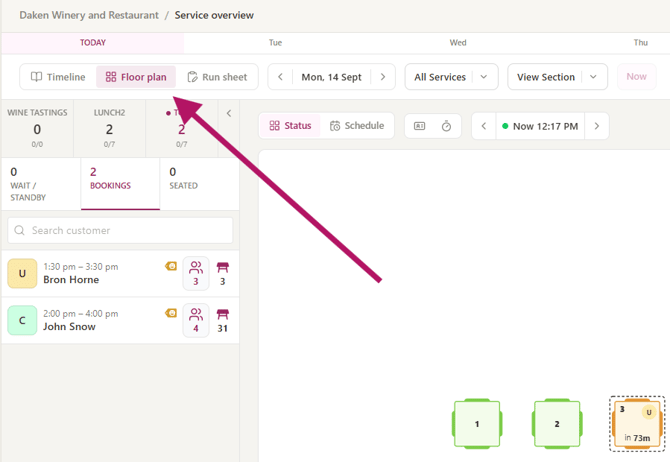 Adjust the Time:
- By default, the floor plan displays bookings for the current time. The arrows on the left and right hand side will adjust the time forward or backwards by 1 hour.
- You can also use the time picker to change time - the time intervals displayed here are based on the booking intervals you set on the services at your venue.
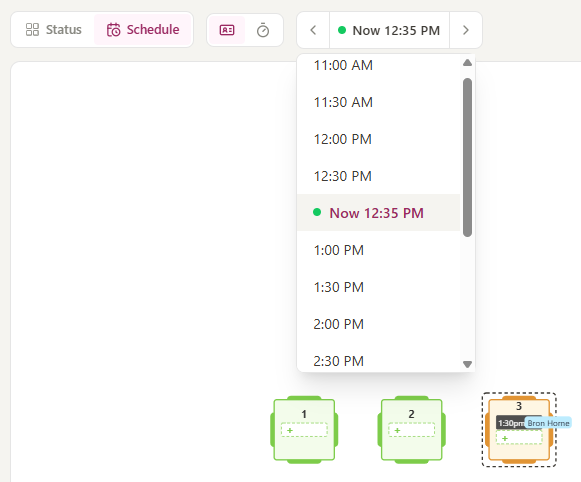
### View by Schedule
Viewing the floor plan by schedule shows you the bookings for the time period selected.
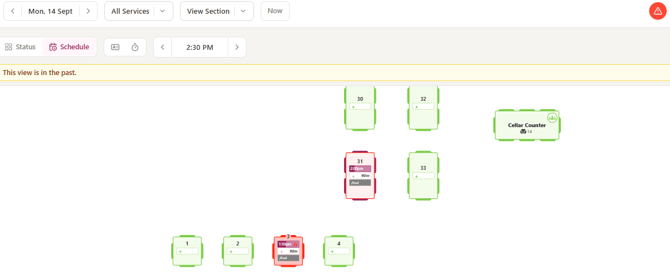
**If your diary has a booking conflict during the time period**: The booking will be indicated in red and you'll also see the warning icon on the top tool bar.
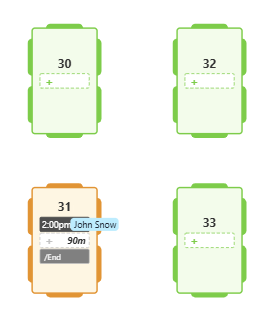
**To show booking cards with time slots:** Hover over the booking on a desktop or press and hold if you're using a tablet device
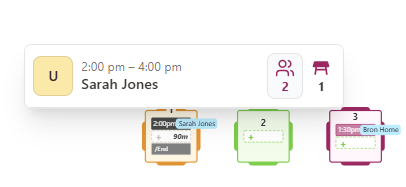
**To create a booking:** Click on any available timeslot
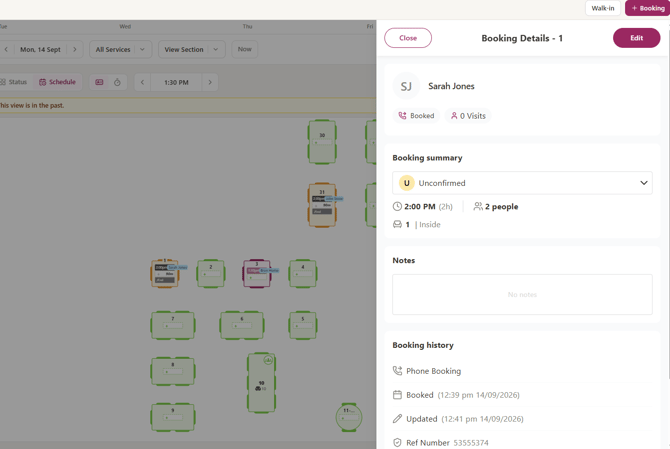
**To show booking details:** Click on a table with the booking to view or edit details
### View by Status
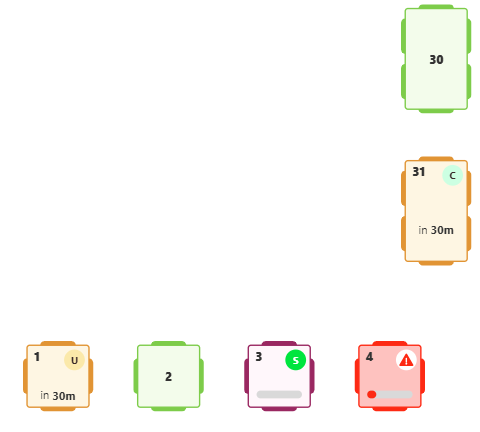
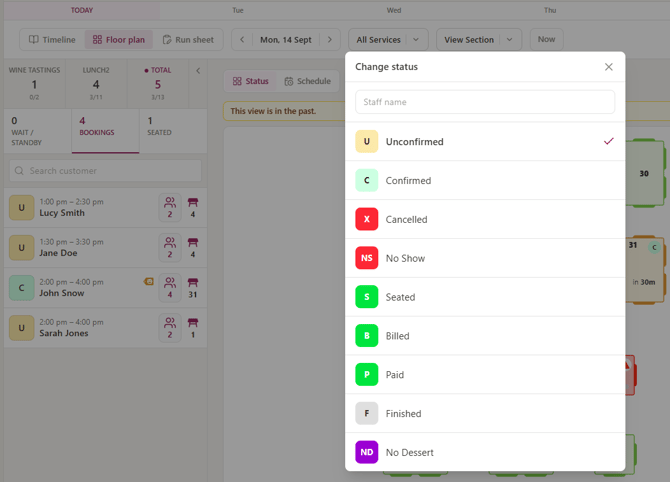
Viewing the floor plan by status shows you the bookings for the time period selected with better visibility of the booking status.
- Time to next booking can be seen in minutes
- Status of bookings are larger and more visible
- Conflicts are shown in red with an exclamation mark
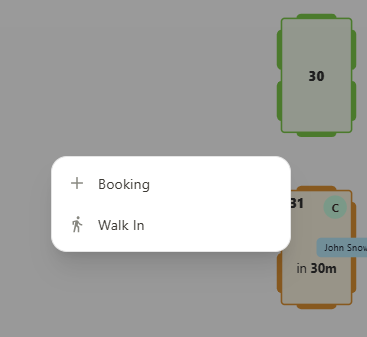
**To create a booking:** Click on any table to prompt the Booking or Walk-in button
**To change booking status:** Click on the status on a table to update it
---
### View by Customer's Name
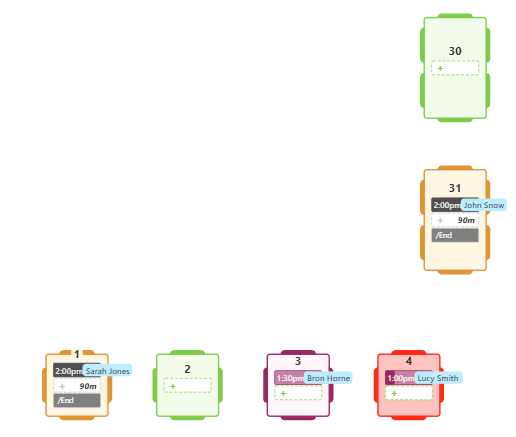
This view shows you tables by the customer's name.Click on the name to expand and see it in full.
---
### View by Remaining Time
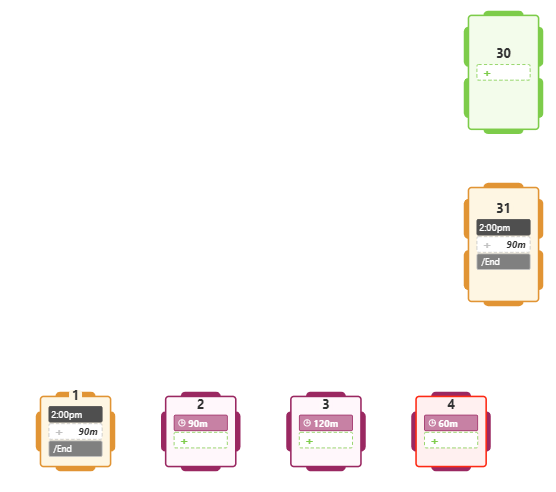
This view shows you tables by the time remaining on the booking.
### Drag & Drop a Booking
To move bookings between tables easily, you can drag and drop the bookings between slots (in schedule view) and between tables (in status view).
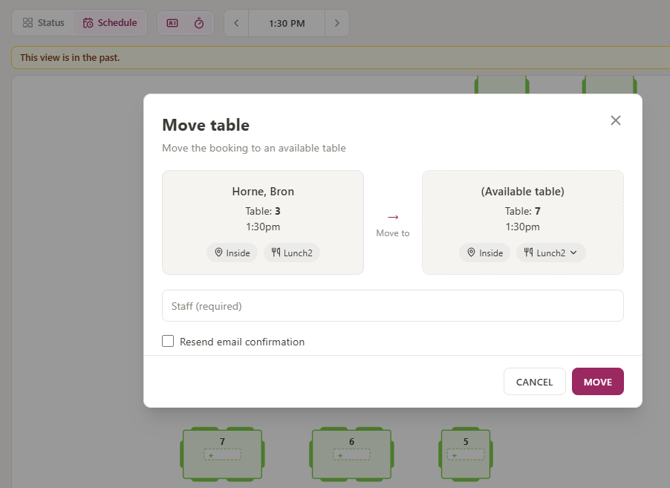
You can also drag and drop bookings from the bookings overview list on the left.
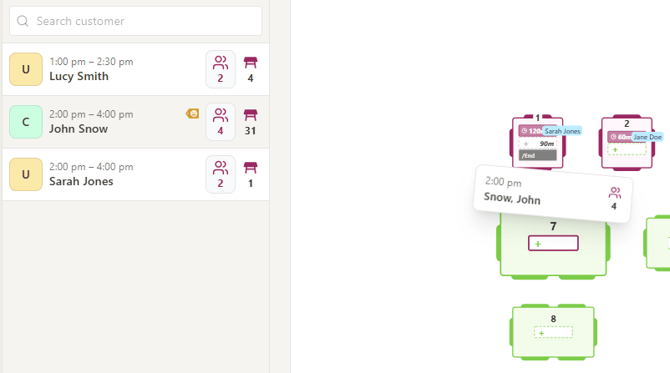
Note: You can only drag and drop bookings or tables that match the current time period selected
- [Getting Started](https://help.nowbookit.com/knowledge-base/getting-started?hsLang=en#main-content)
- [Organisation Settings](https://help.nowbookit.com/knowledge-base/getting-started?hsLang=en#organisation-settings)
- [Venue Settings](https://help.nowbookit.com/knowledge-base/getting-started?hsLang=en#venue-settings)
- [Customisation](https://help.nowbookit.com/knowledge-base/getting-started?hsLang=en#customisation)
- [Today](https://help.nowbookit.com/knowledge-base/getting-started?hsLang=en#today)
- [Venue](https://help.nowbookit.com/knowledge-base/venue?hsLang=en#main-content)
- [Bookings](https://help.nowbookit.com/knowledge-base/venue?hsLang=en#bookings)
- [Diary](https://help.nowbookit.com/knowledge-base/venue?hsLang=en#diary)
- [Tables](https://help.nowbookit.com/knowledge-base/venue?hsLang=en#tables)
- [Take Away](https://help.nowbookit.com/knowledge-base/venue?hsLang=en#take-away)
- [Events & Functions](https://help.nowbookit.com/knowledge-base/events-functions?hsLang=en#main-content)
- [Events](https://help.nowbookit.com/knowledge-base/events-functions?hsLang=en#events)
- [Payments and Gift Cards](https://help.nowbookit.com/knowledge-base/payments-and-gift-cards?hsLang=en#main-content)
- [Gift Cards](https://help.nowbookit.com/knowledge-base/payments-and-gift-cards?hsLang=en#gift-cards)
- [Payments](https://help.nowbookit.com/knowledge-base/payments-and-gift-cards?hsLang=en#payments)
- [Integrations](https://help.nowbookit.com/knowledge-base/integrations?hsLang=en#main-content)
- [POS Integrations](https://help.nowbookit.com/knowledge-base/integrations?hsLang=en#pos-integrations)
- [Other Integrations](https://help.nowbookit.com/knowledge-base/integrations?hsLang=en#other-integrations)
- [Reporting](https://help.nowbookit.com/knowledge-base/reporting?hsLang=en#main-content)
- [NBInsights](https://help.nowbookit.com/knowledge-base/reporting?hsLang=en#nbinsights)
- [CRM](https://help.nowbookit.com/knowledge-base/crm?hsLang=en)
[](http://nowbookit.com)
Need more assistance?
email: [help@nowbookit.com](mailto:help@nowbookit.com)
Call us:
- Australia: [1800 265 726](tel:1800265726)
- New Zealand: [0800 453 933](tel:0800453933)
- United States: [1 469 458 6874](tel:14694586874)
- Canada: [1 438 794 9945](tel:14387949945)
- International: [+61 2 7912 1576](tel:61279121576)
[mailto:help@nowbookit.com](mailto:help@nowbookit.com)
Copyright © 2026, Now Book It