Table Statuses
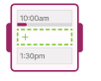
Table colours are used to represent table statuses for a quick glance from the floor plan. These include Available, Upcoming, In Progress, Late, Blockout and Conflict.
| Table Status | Colour | What it means |
|
Available |

|
Table is available for booking |
|
Upcoming |

|
Table has an upcoming booking |
|
In Progress |
|
Booking is in progress |
|
Late |
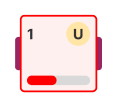 |
Customer is late for their booking by more than 15 mins |
| Blockout | 
|
Table has a Blockout, but can still be booked |
| Conflict | 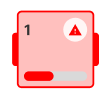 |
Booking is in conflict due to an overlap, time no longer available for the service or table has been removed from the service |
| Joined Table | 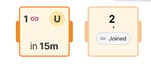 |
Bookings on joined tables show the ‘parent’ table number and a link icon. The ‘child’ table colour is dimmed and it displays a joined pill along with the child table number. |
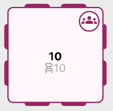
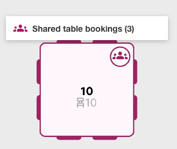
| Shared Table |
|
Bookings on shared tables are indicated with a shared icon. Hovering on the table shows the amount of bookings there are on the shared table. |


Booking Statuses
Table colours and icons are used to represent booking statuses for a quick glance from the floor plan. These include Paid, Over Time, Bill with Customer, Partially Seated, Waiting at Bar.
| Booking Status | Colour / Icon |
| Paid | 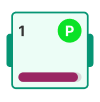 |
| Over Time | 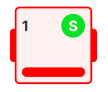 |
| Bill with Customer | 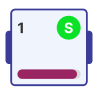 |
| Partially Seated | 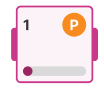 |
| Waiting at Bar | 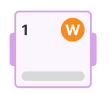 |
Tip: Table and Booking Statuses can be turned on and customised in Settings under Bookings - Statuses.
Create New Booking Status
From the Settings - Bookings - Statuses
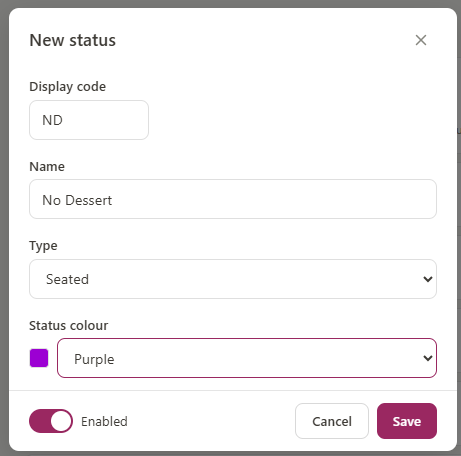
1. Click '+ New Status'
2. Input a Display Code (what shortened letters will show for your status)
3. Give it a name, a type and colour
4. Save.
For each additional Status, You can toggle 'Enabled' on or off.