
Discount codes let you offer guests money off. You can create a discount code for:
- Gift cards, which takes a percentage off the price of a gift card.
- Services (normal bookings), which takes a set dollar amount off the total booking cost.
- Events, which takes a set dollar amount off the total booking cost.
Guests enter the code in the Promotion Code field at checkout and select Apply Discount to redeem it.
Discount codes for gift cards
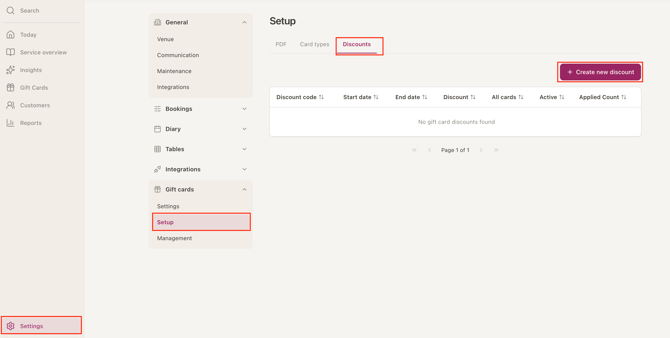
- Go to Settings>Gift Cards> Setup.
- Select the Discounts tab at the top, then +Create new discount in the top right.
-
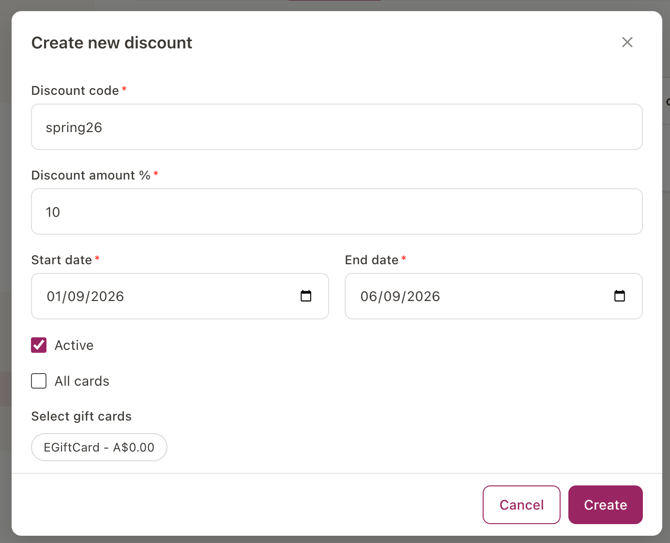
- In the Discount code field enter a name for the discount code (eg. spring2 6)
- In the Discount Amount % field enter a discount percentage.
- Enter a Start date and End date for the validity of the promotional code.
- Tick active to make this discount code active or deselect to deactivate
- Select All cards to apply the discount to all active gift cards, or deselect to only apply the code to selected cards. Options will show once the All Cards box is unticked.
- Click Create
Discount codes for services and events
Before you start, keep in mind:
- Discount codes only work when the service or event takes payment by Full Payment, Deposit or Booking Options.
- Discount codes can't be used with pre-authorisation or no payment.
- Each service or event can have one discount code.
- Discounts are set on the service or event, not on individual bookings.
Add a discount code to a service
- Go to Settings > Diary > Schedule.
- Open the service you want to add the discount to.
- Open the Payment tab.
- Choose Full Payment, Deposit or Booking Options as the payment type.
- Fill in the discount fields, including the Discount amount.
- Select Save.
Add a discount code to an event
- Go to Settings > Diary > Events.
- Open the event you want to add the discount to, or select + New event to create one.
- Open the Payment tab.
- Choose Full Payment, Deposit or Booking Options as the payment type.
- Fill in the discount fields, including the Discount amount.
- Select Save.
Discount code option only appears once you've selected Full Payment, Deposit or Booking Options on the Payment tab.