
Before you start
- You’ll need admin access to your venue in Now Book It.
- You’ll also need someone with admin access to the venue’s Lightspeed or Square account to log in and approve the connection.
- The set up email from us with instructions on setting up your integration.
Finding the API Connect page
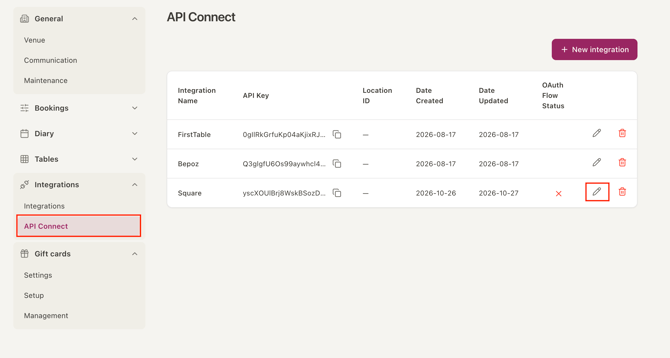
- Log in to Now Book It and select your venue.
- Click Settings (bottom left of the screen).
- Click Integrations to open the menu.
- Click API Connect.
You’ll see a list of your integrations. The OAuth Flow Status column shows whether each one is connected:
- A green tick means the integration is connected.
- A red ✖ means the integration isn’t connected yet.
Connecting the integration to your POS
- Find your integration in the list and click the pencil icon to edit it.
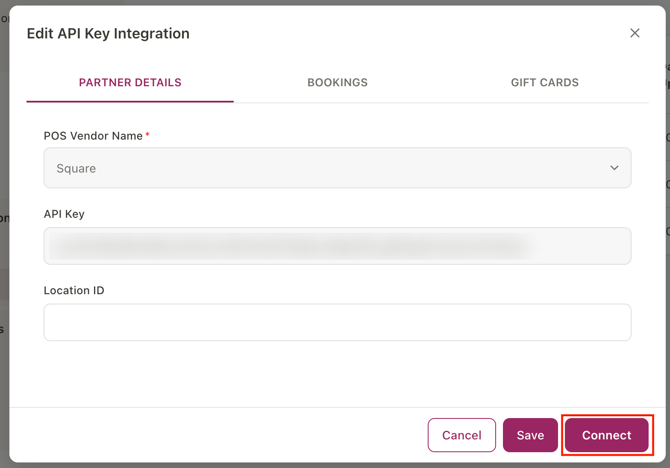
- Click Connect. The Lightspeed or Square login page will open.
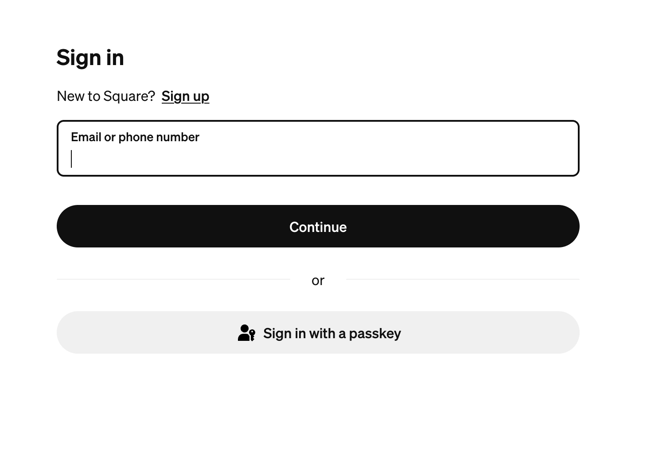
- Log in with the venue’s Lightspeed or Square account and click to allow access.
- You’ll be taken back to Now Book It. Refresh the page.
The red ✖ should now show as a green tick. Your integration is connected and ready to use.
Troubleshooting
The integration still shows a red ✖.
The connection didn’t finish. Click the pencil icon, then click Connect and log in to your POS again. Remember to refresh the page once you’re back in Now Book It.
Who should log in to the POS during setup?
Someone with admin access to the venue’s POS account. Staff logins without admin access may not be able to approve the connection.