---
title: HTML Email Templates
description: How to use HTML to edit and customise your emails sent from Now Book It
---
[Skip to content](https://help.nowbookit.com/html-email-templates#main-content)
English
Show submenu for translations
[](https://nowbookit.com)
Open main navigation
Close main navigation
- English
Show submenu for translations
- [New Now Book It Experience](https://help.nowbookit.com/knowledge-base)
[New Now Book It Experience](https://help.nowbookit.com/knowledge-base?hsLang=en)
How can we help you?
- There are no suggestions because the search field is empty.
1. [Help Centre](https://help.nowbookit.com/?hsLang=en)
2. [Configuration and Communication](https://help.nowbookit.com/configuration-and-communication?hsLang=en)
3. [Email and Communications](https://help.nowbookit.com/configuration-and-communication?hsLang=en#email-and-communications)
# HTML Email Templates
## How to use HTML to edit and customise your emails sent from Now Book It
### Selecting a HTML Email Template
1. Log into Admin
2. Click on Venue \> HTML Email Templates
3. Go to the ‘Select Email Template' drop down menu and select the relevant template
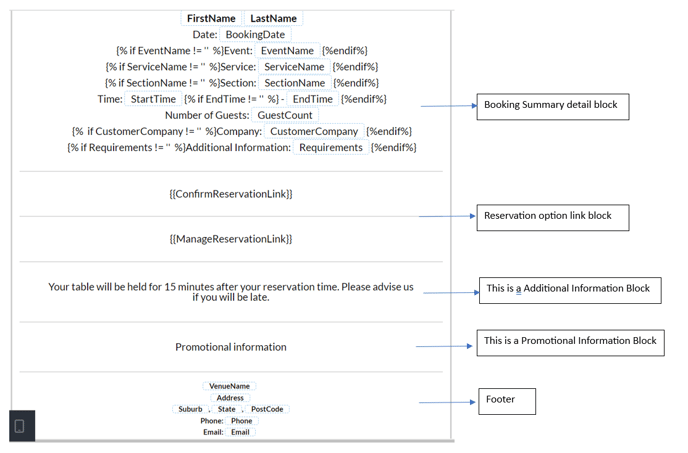
### Names of the blocks in the templates
### Features to add to the template
1. Content - text, images or HTML that can be added within a block on the template
2. Blocks - blocks with different sections that can be added to a template
3. Body - configuration for the block (text colour, font family etc)
4. Images - system images that can be added to the template
5. Uploads - where a user can upload their own images
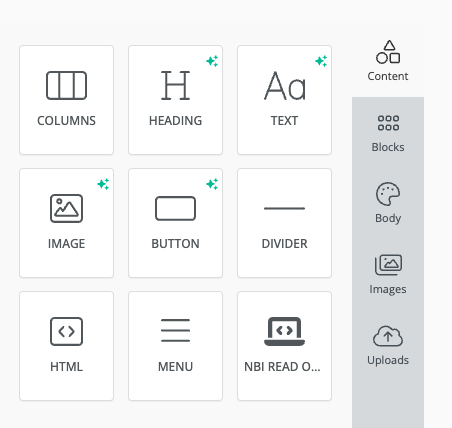
#### Functions within HTML Email Templates
### Adding a new block
1. Find where the block will go on the template
2. Click on the + to add a block

or click on ‘Blocks’ (see ‘Features to add to the template’ and drag it into place

3. Using the right hand menu add con
4. Either save the current template or create a new version
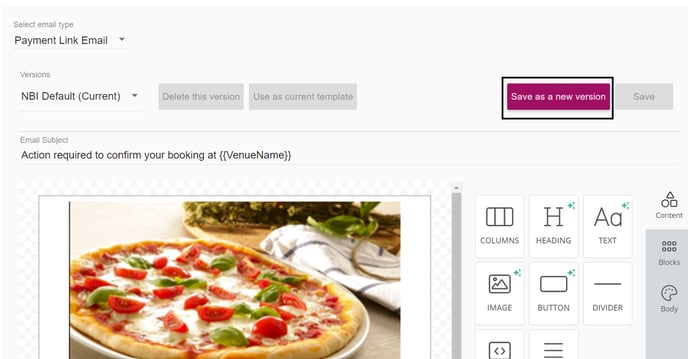
### Saving a new version of the template
1. Make required changes
2. Click on ‘Save as a new version’
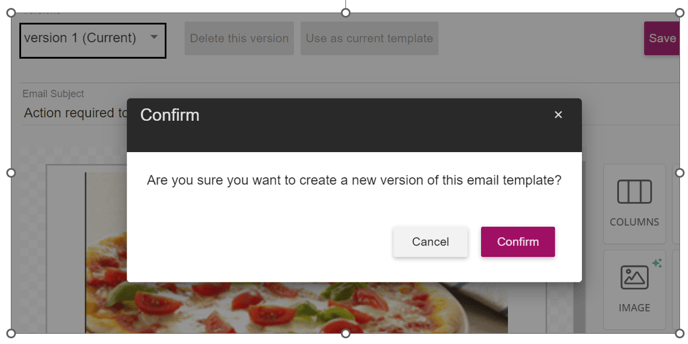
3. Click confirm on the popup
### Save changes on current version (no new version is created)
1. Make required changes
2. Click on ‘Save’

3. Click on ‘Confirm’ to save the changes

### **Update logo or background image**
1. Click on image (or content block)
2. On right hand menu \> under image \> select “Upload Image”
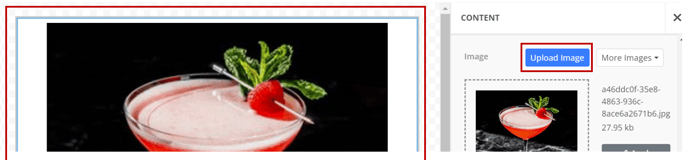
3. Choose your image and upload
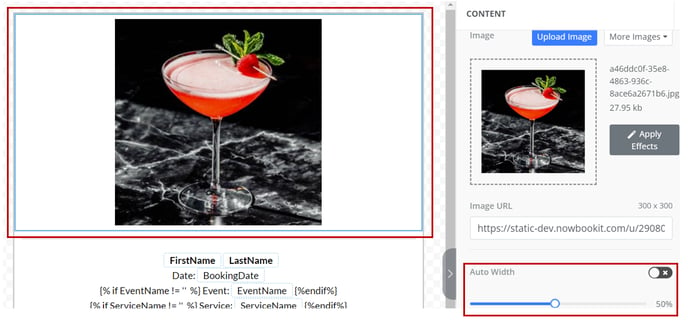
4. Scroll down to section “Auto Width” \> move the slider to resize the image and save
### **Updating the background colour - header and footer**
1. Select a block
2. On the right hand menu under column properties choose “Background Color' option.
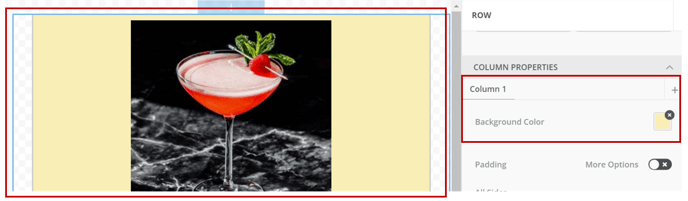
3. Pick a colour
4. Click on Save
### **Hiding information (not available on all blocks)**
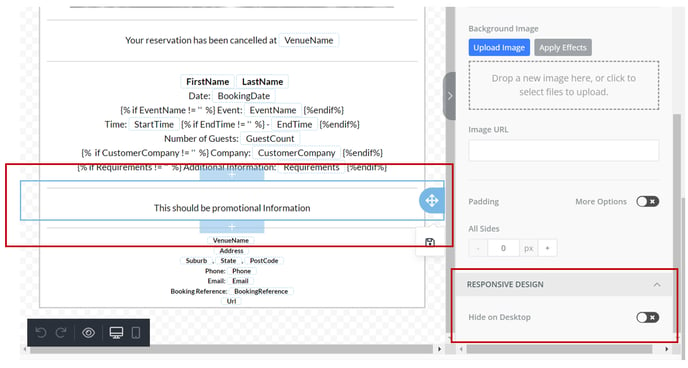
1. Select the block that needs hiding
2. On the right hand menu scroll to bottom to “Hide on Desktop”
Toggle ON - To hide the row
Toggle OFF - To show the information
3. After making the selection, ensure the template is saved
Only available on the below templates
- **Successful email template:** Tax Invoice, Additional Information and Promotional Information blocks
- **Confirmation email template:** Additional and Promotional Information blocks
- **Cancelled Template:** Promotional Information block
- **Reminder email template:** Additional and Promotional Information block
### **Updating text in blocks (not available on all blocks)**
1. Select the content block that requires an update
2. Edit the information
3. Use the available functions to change font, font size, alignment etc.
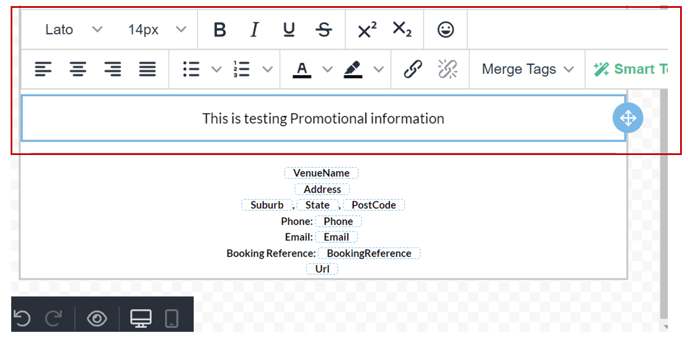
4. After updating, ensure the template is saved
Only available on the below templates
- **Successful email template:** Additional Information block
- **Reminder email template:** Additional Information block
- **Confirmation email template:** Additional and Promotional Information blocks
- **Cancelled Template:** Promotional Information block
- **Thank you Template**: Promotional Information block
### Amending the padding of a block
Padding is the space between the boarder and the text within a block. It is around the first line and the last line.
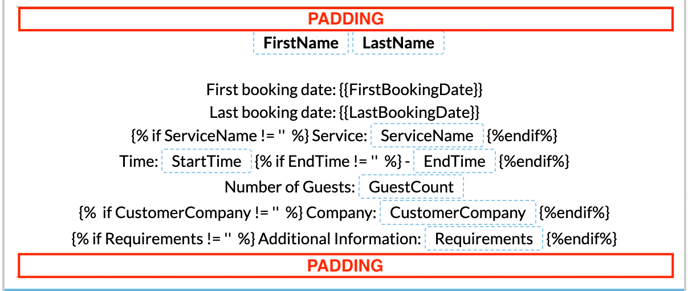
1. Select the block the needs amending
2. On the right hand side menu adjust the ‘Container Padding’ as required

### **Adding links to templates**
1. Select the content block that requires an update
2. Highlight the text that needs to be a link

3. Click on the ‘Insert/Edit link’ button
4. Enter required details and click ‘Save’
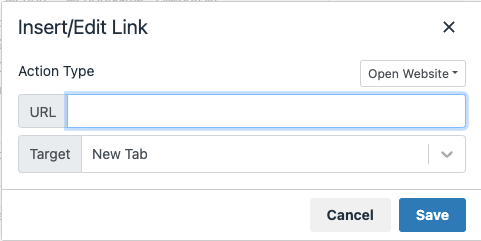
5. After updating, ensure the template is saved
Only available on the below templates
- **Successful email template:** Additional Information block
- **Reminder email template:** Additional Information block
- **Confirmation email template:** Additional and Promotional Information blocks
- **Cancelled Template:** Promotional Information block
- **Thank you Template**: Promotional Information block
### **Deleting a block (not available on all blocks)**
1. Select the content block to be deleted from the template
2. Click on the bin icon at the bottom of the block
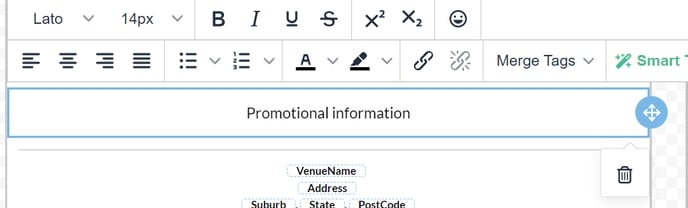
3. After deleting, ensure the template is saved
Only available on the below templates
- **Confirmation email** template : Promotional Information block
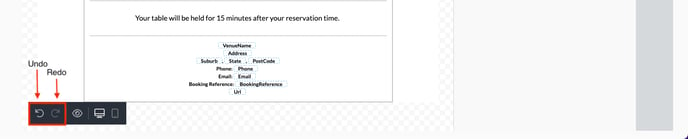
### Undo or redo changes made to a template
1. Go to the bottom of the screen
2. Click on the ‘undo’ or ‘redo’ arrows
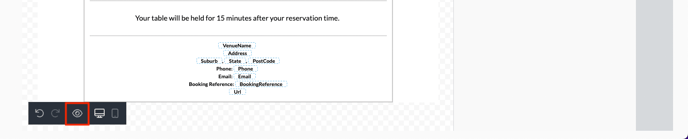
### Previewing templates
1. Go to the bottom of the screen
2. Click on the ‘eye’ icon
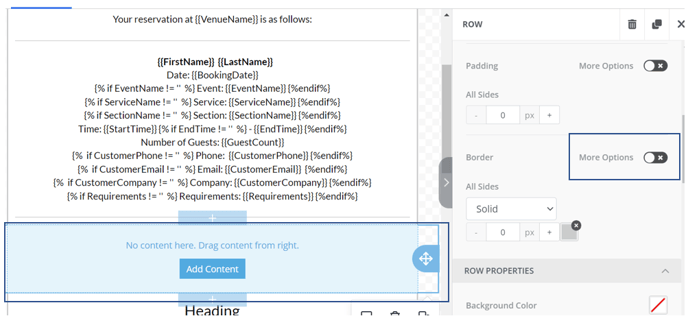
### **Formatting borders if a new block is added**
1. Select the new block that was added to the template.
2. Then click on enable “More Options” for the Border on right hand side menu.
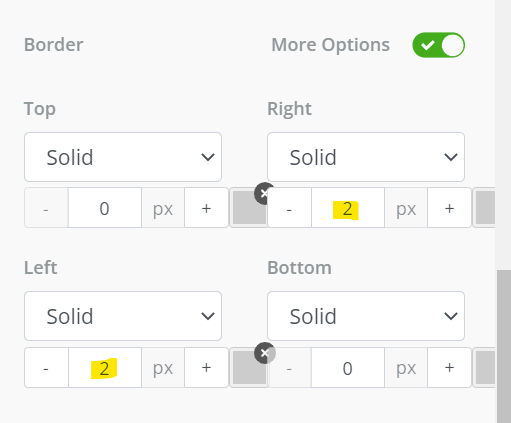
3. The Border setting should be set to following for the sides of the new block
1. Top = 0
2. Right = 2
3. Left = 2
4. Bottom = 0
- [Get Started](https://help.nowbookit.com/get-started?hsLang=en#main-content)
- [Onboarding and Setup](https://help.nowbookit.com/get-started?hsLang=en#onboarding-and-setup)
- [Your Account and Subscription](https://help.nowbookit.com/get-started?hsLang=en#your-account-and-subscription)
- [User Management](https://help.nowbookit.com/get-started?hsLang=en#user-management)
- [Diary / Bookings / Customers](https://help.nowbookit.com/diary-bookings-customers?hsLang=en#main-content)
- [Managing Bookings](https://help.nowbookit.com/diary-bookings-customers?hsLang=en#managing-bookings)
- [Diary Views and Settings](https://help.nowbookit.com/diary-bookings-customers?hsLang=en#diary-views-and-settings)
- [Floor Plan](https://help.nowbookit.com/diary-bookings-customers?hsLang=en#floor-plan)
- [Blockouts](https://help.nowbookit.com/diary-bookings-customers?hsLang=en#blockouts)
- [Standby List and Wait List](https://help.nowbookit.com/diary-bookings-customers?hsLang=en#standby-list-and-wait-list)
- [Diary Mobile](https://help.nowbookit.com/diary-bookings-customers?hsLang=en#diary-mobile)
- [Customers](https://help.nowbookit.com/diary-bookings-customers?hsLang=en#customers)
- [Booking Options and Services](https://help.nowbookit.com/diary-bookings-customers?hsLang=en#booking-options-and-services)
- [Takeaway](https://help.nowbookit.com/diary-bookings-customers?hsLang=en#takeaway)
- [Events and Special Occasions](https://help.nowbookit.com/events-and-special-occasions?hsLang=en#main-content)
- [Creating and Managing Events](https://help.nowbookit.com/events-and-special-occasions?hsLang=en#creating-and-managing-events)
- [Event Scheduling](https://help.nowbookit.com/events-and-special-occasions?hsLang=en#event-scheduling)
- [Sadie and Integrations](https://help.nowbookit.com/sadie-and-integrations?hsLang=en#main-content)
- [Sadie (AI Assistant)](https://help.nowbookit.com/sadie-and-integrations?hsLang=en#sadie-ai-assistant)
- [POS Integrations](https://help.nowbookit.com/sadie-and-integrations?hsLang=en#pos-integrations)
- [Payment Gateways](https://help.nowbookit.com/sadie-and-integrations?hsLang=en#payment-gateways)
- [Google / Facebook](https://help.nowbookit.com/sadie-and-integrations?hsLang=en#google-facebook)
- [Partner Integrations](https://help.nowbookit.com/sadie-and-integrations?hsLang=en#partner-integrations)
- [Payments and Gift Cards](https://help.nowbookit.com/payments-and-gift-cards?hsLang=en#main-content)
- [Gift Cards](https://help.nowbookit.com/payments-and-gift-cards?hsLang=en#gift-cards)
- [Payments and Refunds](https://help.nowbookit.com/payments-and-gift-cards?hsLang=en#payments-and-refunds)
- [Configuration and Communication](https://help.nowbookit.com/configuration-and-communication?hsLang=en#main-content)
- [Venue Settings](https://help.nowbookit.com/configuration-and-communication?hsLang=en#venue-settings)
- [Email and Communications](https://help.nowbookit.com/configuration-and-communication?hsLang=en#email-and-communications)
- [Booking Customisation](https://help.nowbookit.com/configuration-and-communication?hsLang=en#booking-customisation)
- [Booking Widget Customisation](https://help.nowbookit.com/configuration-and-communication?hsLang=en#booking-widget-customisation)
- [CRM](https://help.nowbookit.com/configuration-and-communication?hsLang=en#crm)
- [NBI Booking Analytics](https://help.nowbookit.com/nbi-booking-analytics?hsLang=en#main-content)
- [Payments](https://help.nowbookit.com/nbi-booking-analytics?hsLang=en#payments)
- [Bookings & Service](https://help.nowbookit.com/nbi-booking-analytics?hsLang=en#bookings-service)
- [Getting Started](https://help.nowbookit.com/nbi-booking-analytics?hsLang=en#getting-started)
[](https://nowbookit.com)
Need more assistance? Speak to a team member over the phone.
- Australia: [1800 265 726](tel:1800265726)
- New Zealand: [0800 453 933](tel:0800453933)
- United States: [1 469 458 6874](tel:14694586874)
- Canada: [1 438 794 9945](tel:14387949945)
- International: [+61 2 7912 1576](tel:61279121576)
[mailto:enquiries@nowbookit.com](mailto:enquiries@nowbookit.com)
[nowbookit.com](https://www.nowbookit.com/)
Copyright © 2026, Now Book It