
You must be logged in as as the Account Owner to connect Stripe to your venue.
1. Login to your Now Book It Admin site, www.admin.nowbookit.com
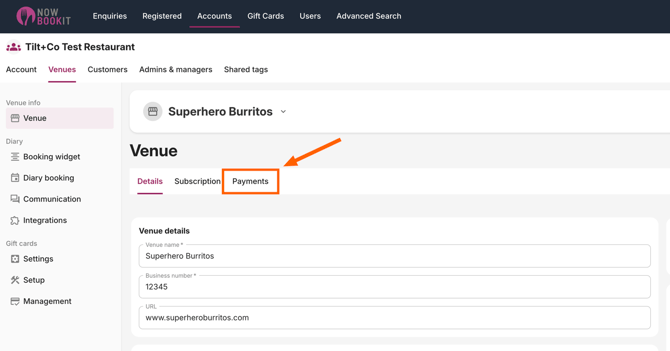
2. Select your Venue.
3. Navigate to the 'Payments' tab.
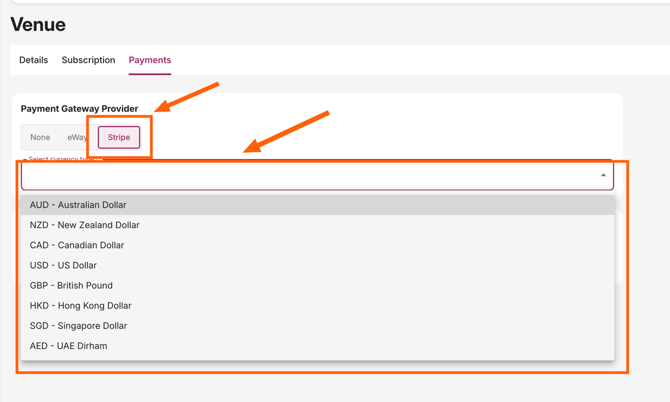
3. Select Stripe as the payment option and select a currency type
4. Click the "Sign Up for Stripe" button
5. After clicking the 'Sign Up' button, a new screen will appear prompting you to enter the email address associated with your Stripe account. Enter this in the field then press 'Submit'

6. On the next screen, you'll be prompted to enter your Stripe password—go ahead and enter it to continue.
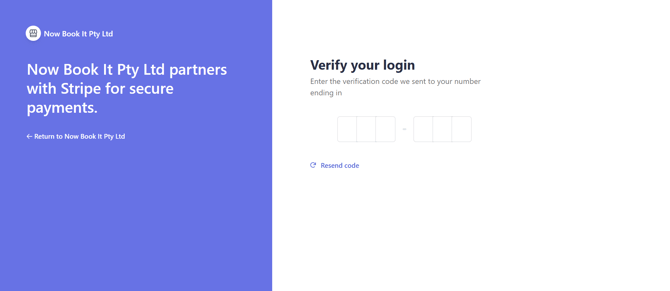
7. Stripe will send a verification code to the mobile number linked to your account. Enter the code in the designated field to proceed.
8. A page will come up with the Stripe account details you are logging into, confirm the account then press 'Save'.
8. Your Stripe account will be connected and ready to use.
Pass Fees to Customer
As part of how Stripe processes payments, they apply their own fees on each transaction (for example, 1.7% + .30 cents per payment for Australia, 2.65% + .30 cents per payment for New Zealand).
By default, these fees aren’t added to what the customer pays. However, if you’d like to pass the Stripe fee on to your customers, you can enable this in your Now Book It Admin settings by following the steps below.
Admin Setup
1. Login to your Now Book It Admin site, www.admin.nowbookit.com
2. Select your Venue.
3. Navigate to the 'Payments' tab.
4. Click the "Charge Stripe Fees" box on the page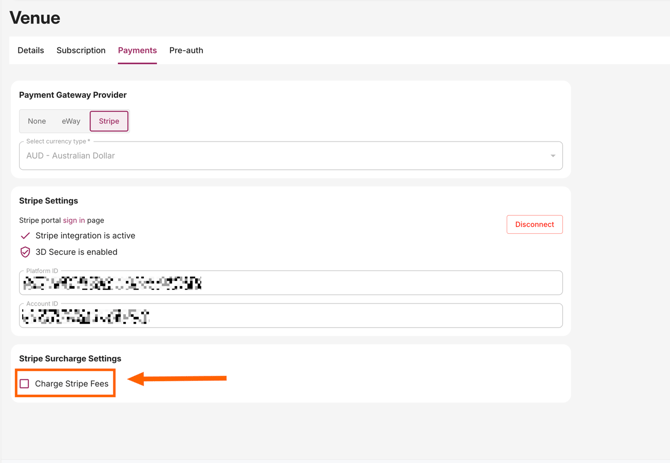
5. This will open up a pop-up box that must be accepted in order to enable this feature. Please review the information in the box and click "Confirm" if you agree to the information in the pop-up.
6. If you click "Confirm," you will see two additional fields appear on the page.
-
- Processing Fee Percentage: this is the exact percentage that Stripe charges you for transactions. Please confirm the percentage with Stripe if you're unsure about the exact amount.
- Charge Stripe Flat Fee: this is an option that will pass the 30 cent fee to the customer as well.
- You can choose to select both the percentage and flat fee, or only the percentage.
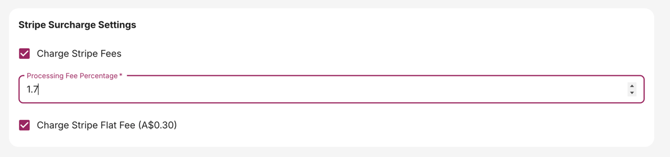
7. Click "Save" on the bottom of the page to save the changes. Once you apply these changes it will immediately apply to any charges you have set on your account.
Widget Appearance
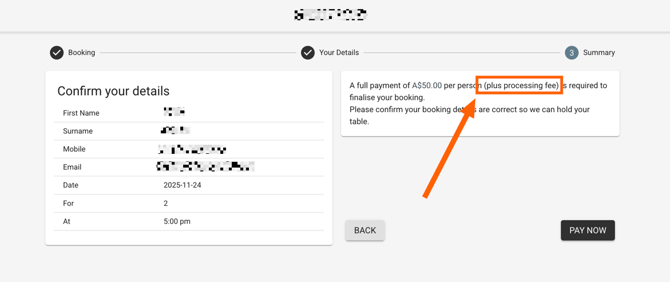
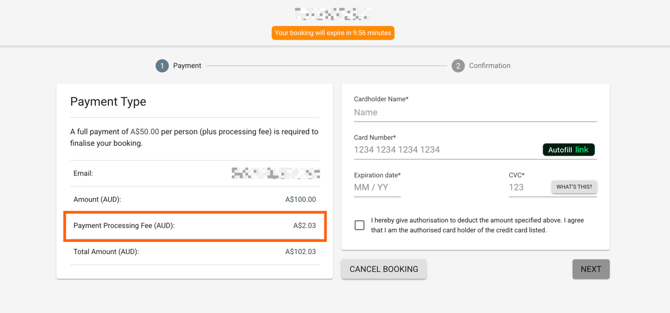
- Once the Stripe Fees have been turned on, they will appear in the widget, as shown below:
Connection Errors
If you're seeing an error while connecting Stripe, or your Stripe account won't link to your venue, it's usually one of the issues below
- You're not logged in as the Account Owner. Only the Account Owner can connect Stripe. If you're logged in as a staff or manager user, you'll need to log in as the Owner, or ask them to complete this step.
- The email doesn't match your Stripe account. The email you enter during setup needs to match the one on your existing Stripe account. If you use a different email, Stripe may try to create a new account instead of linking your current one.
- Your Stripe account isn't fully verified. If you haven't finished Stripe's phone verification or identity checks, the connection can fail partway through. Log in to Stripe directly to check for any outstanding verification steps.
- The currency doesn't match your Stripe account's country. Choosing a currency that doesn't match where your Stripe account is registered can cause the connection to fail. Confirm your Stripe account's country and select the matching currency in Now Book It.
- The session timed out. If you took a while to complete the Stripe steps (email, password, verification code), the link can expire. Start again from the 'Payments' tab and complete each step promptly.
Still stuck? Contact your Now Book It support team with the exact error message you're seeing, and we'll help you get connected.
Notes
- If you have this feature on, it will also apply to Pre-Authorisation charges automatically.
- If you are using Pre-Authorisations on any of your bookings on your account and if you have set up a custom HTML email for Payment Link emails, you'll need to go to that specific email and click the "Save as a New Version" in the upper right.
- If you are unsure on what specific Stripe fees you are being charged please contact Stripe and verify this before adding this feature, to make sure you're following all applicable local, state, and federal laws.
- For Canadian customers based in Quebec, province law prevents charging these fees to customers.